Quick Start
Get Sublarr connected to your media stack and downloading subtitles.
Connect your *arr apps and trigger your first subtitle search.
Prerequisites
Section titled “Prerequisites”- A running Sublarr instance — see Installation.
- At least one reachable Sonarr or Radarr instance.
- (Optional) an Ollama or cloud translation backend if you want translation.
1. Open the Onboarding Wizard
Section titled “1. Open the Onboarding Wizard”Open http://<HOST_IP>:5765/ in a browser. On first run the Onboarding Wizard appears automatically. If you skipped it, reopen it via Settings → General → Re-run onboarding.
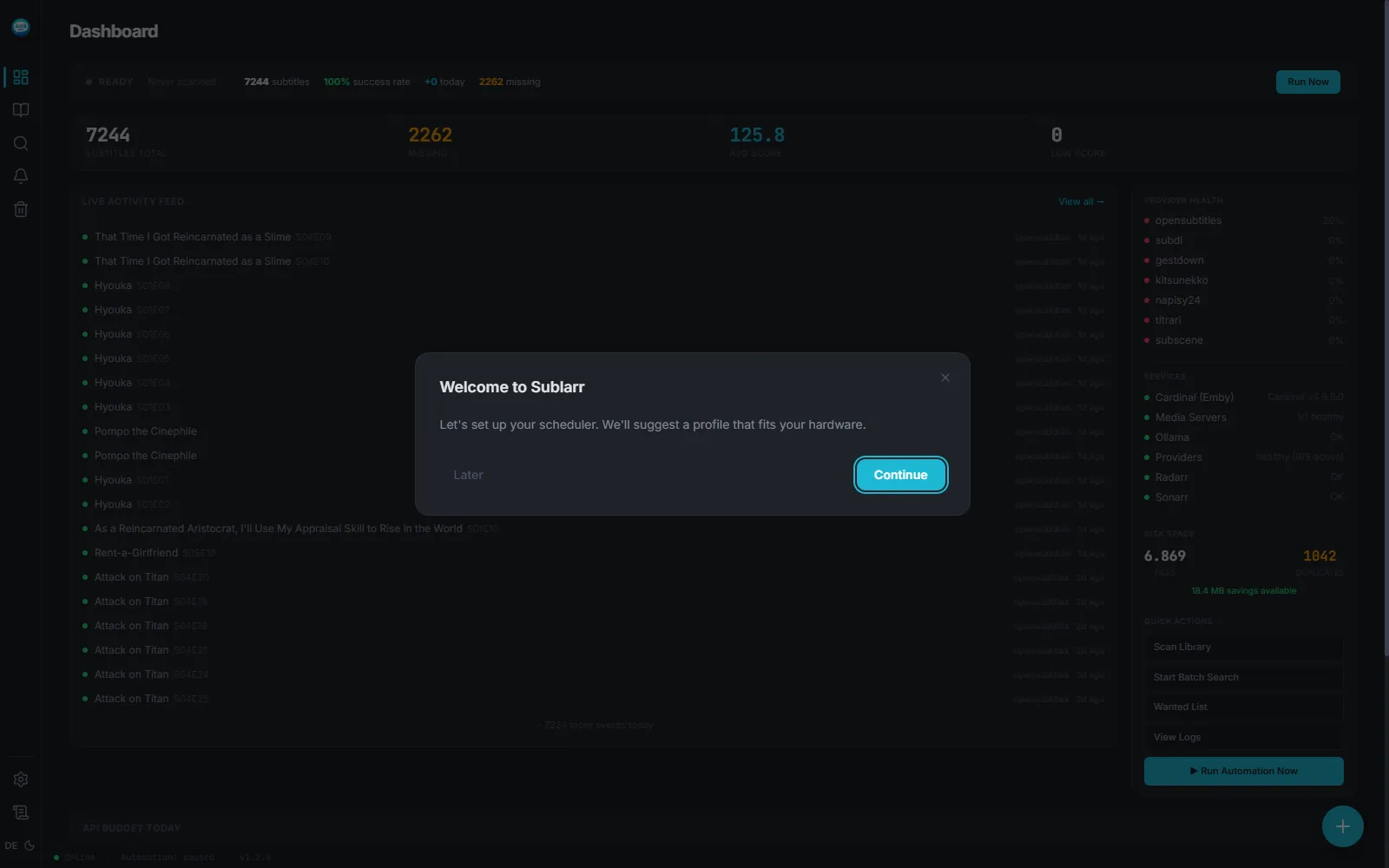
The first wizard step also asks for your Media Path — the in-container path where Sublarr can read your library (default /media, matching the Docker mount from Installation). If your Sonarr/Radarr containers see a different path (e.g. /data), set up path mapping later in Settings → Integrations.
2. Connect Sonarr or Radarr
Section titled “2. Connect Sonarr or Radarr”In wizard step 2, fill out URL, API Key, and the Default Language Profile. The API key lives in Sonarr/Radarr at Settings → General. Click Test to verify reachability.
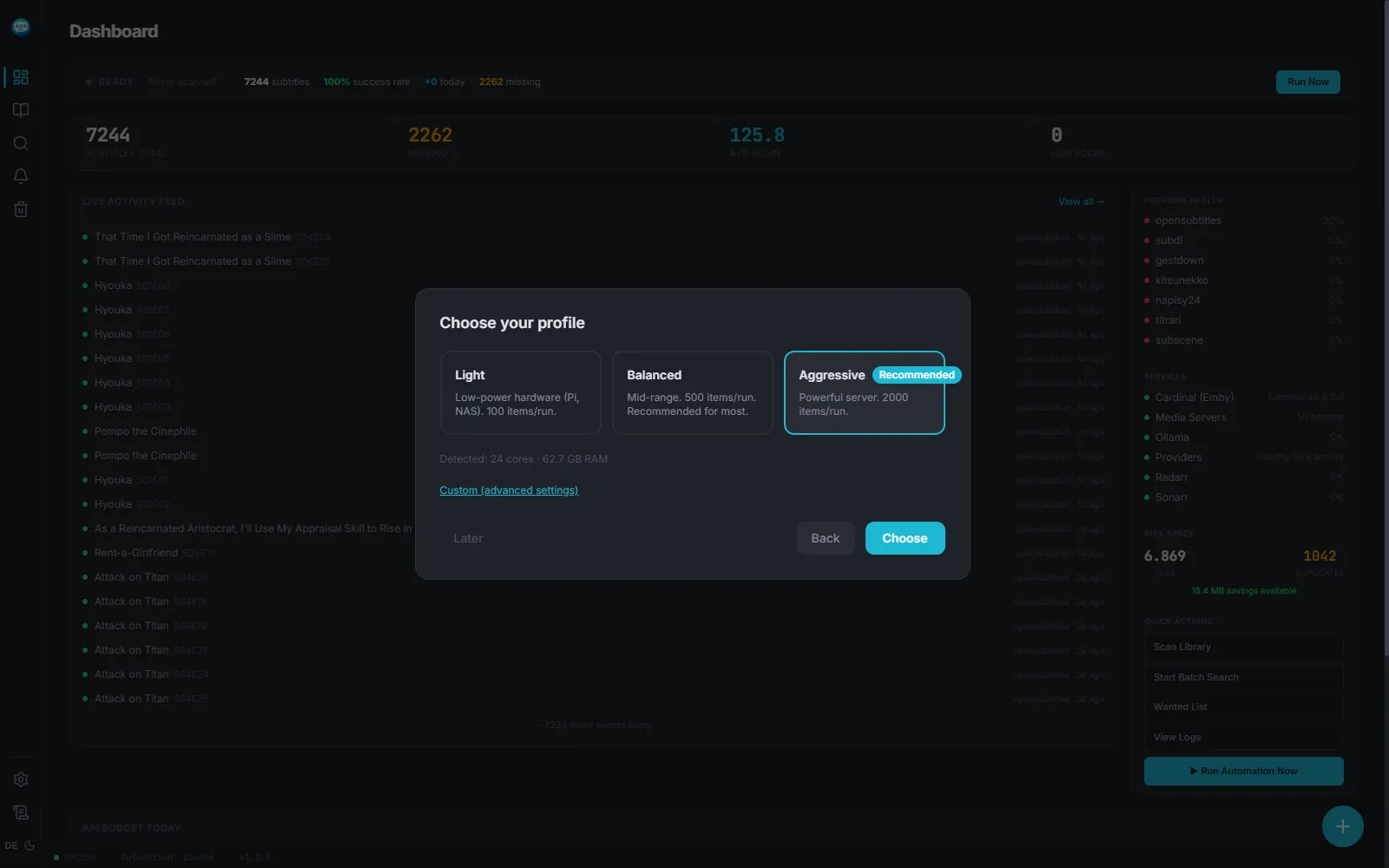
For details on Sonarr/Radarr fields and path mappings, see Integrations.
3. Pick a Language Profile
Section titled “3. Pick a Language Profile”Step 3 lets you create or pick a Language Profile — the per-series rules for what languages to fetch and at what minimum score. The default profile targets German (de) with a cutoff score of 4.0; add English (en) as a fallback if you want Sublarr to accept English when German is missing.
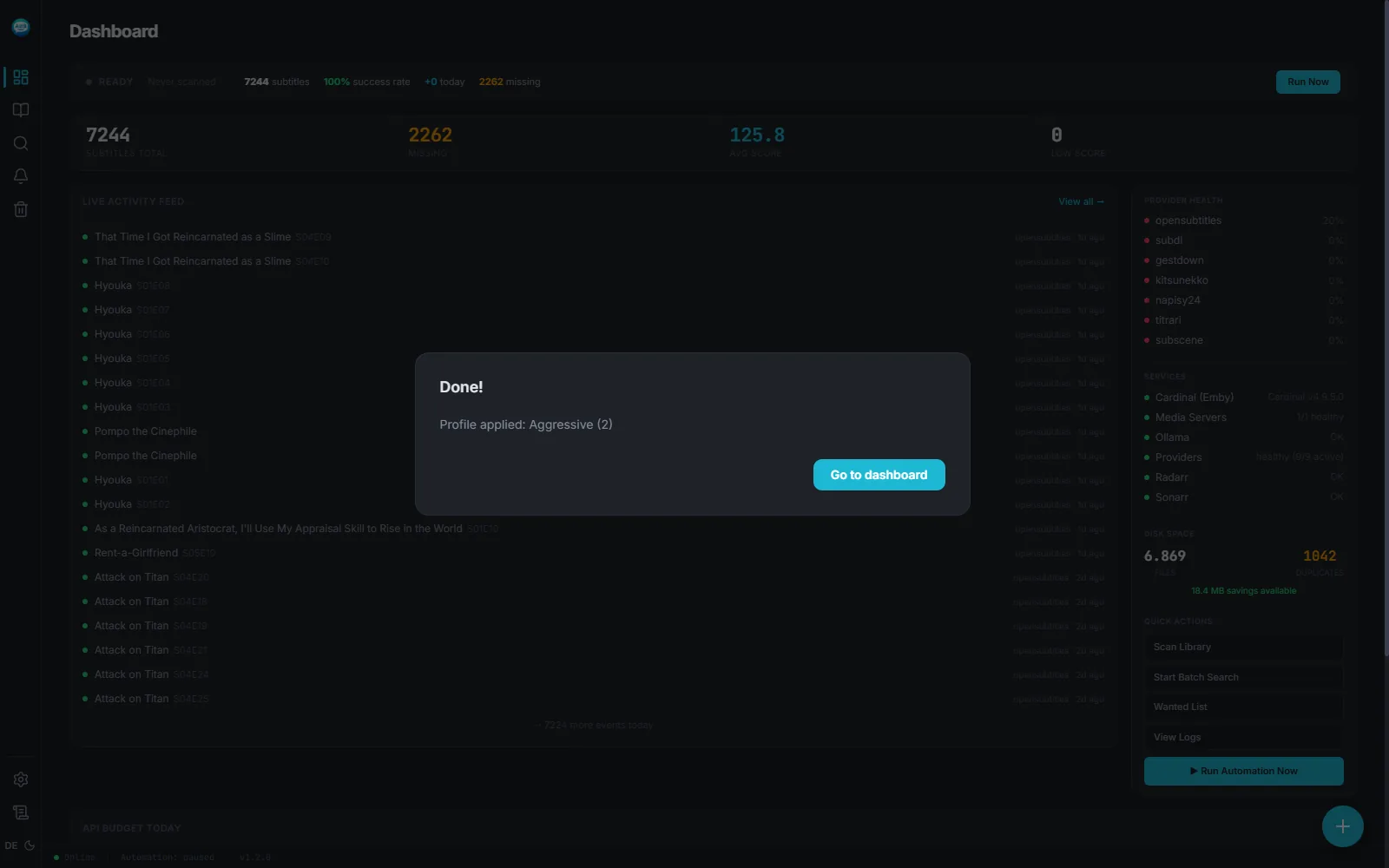
For deeper profile design, see Language Profiles.
4. Trigger the first scan
Section titled “4. Trigger the first scan”After finishing the wizard, open Wanted → Scan now. Sublarr fans out to every enabled provider, scores candidates, and starts downloading.
For what the scoring rules do, see Wanted.
Verify
Section titled “Verify”Open Activity → Recent. Within a minute the scan run appears, then individual downloads.
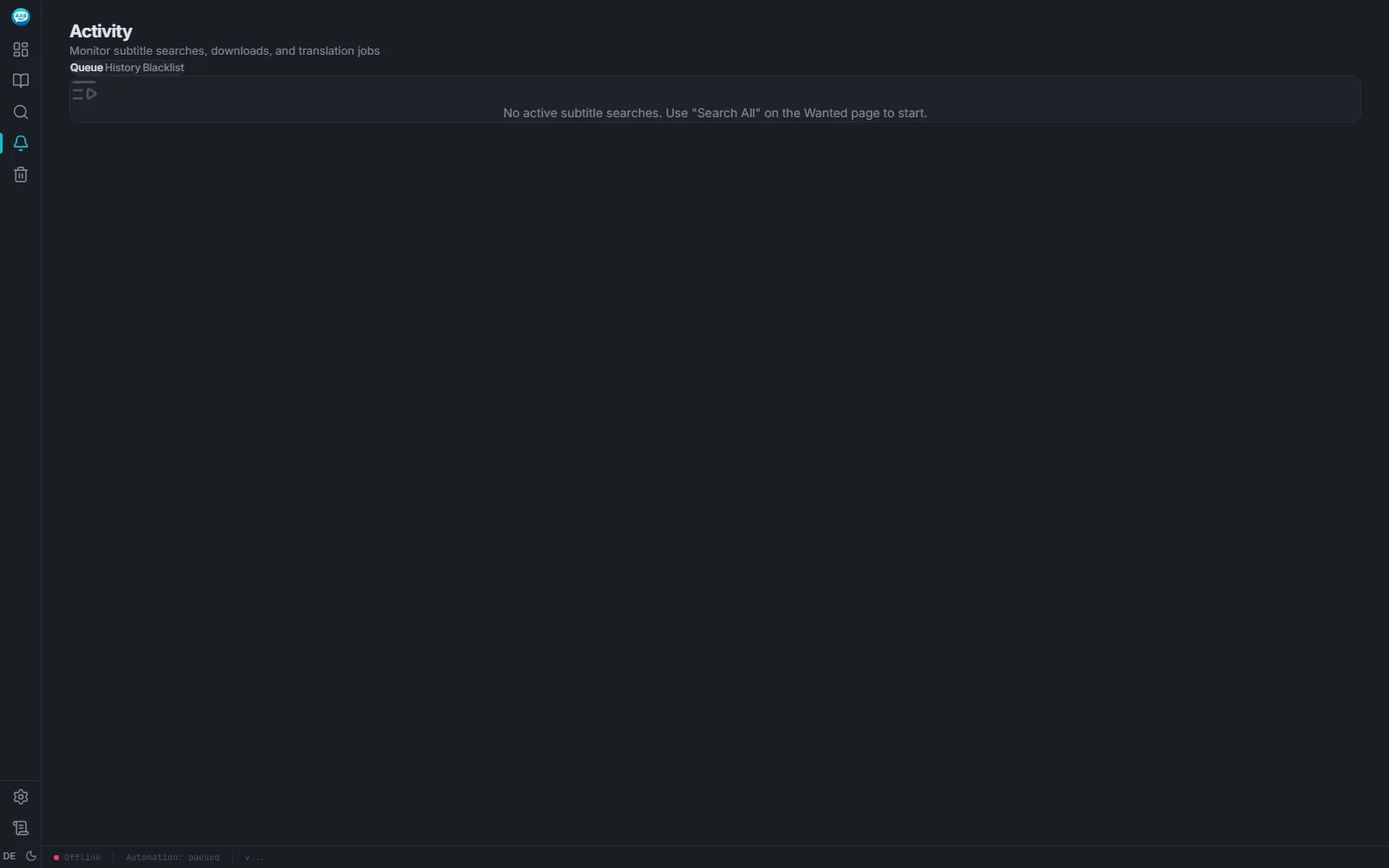
If nothing appears after 2 minutes, check the troubleshooting page for common causes.